
Office 2021 end of support is a good reason to check your team’s setup this week. It is a poor reason to replace everything in a panic. Start by identifying the version you actually use, listing the files that keep the business running, and testing copies in the replacement you are considering.
Your invoice workbook, customer proposal, and shared templates deserve a trial run before anyone uninstalls the old tools. A spreadsheet that opens is not necessarily a spreadsheet that works.
What Office 2021 end of support changes
Microsoft’s dedicated support notice gives October 13, 2026 as the end of support. It says the apps may continue functioning, but technical support, bug fixes, and security fixes will end, with no extension or extended security updates.
Checked October 7, 2026: the separate Microsoft lifecycle listing displays a different retirement timestamp on October 14. For planning, use the earlier date in the dedicated notice and confirm the deadline with your administrator. Either way, the useful work belongs on this week’s checklist.
This Office 2021 end of support guide is researched, not a report of a migration we have completed. The five checks below are a practical way to decide what your team needs.
1. Confirm the version before buying anything
For your Office 2021 end of support inventory, ask each teammate to open their Office account or About screen and record the product name, edition, version, device, and operating system. Do not rely on a desktop shortcut that simply says Excel. Save a screenshot if that makes the inventory easier.
Office 2021, Microsoft 365, and other Office releases have different support arrangements. This notice is about Office 2021. If IT manages the installation, start with the team responsible for licensing and updates rather than buying a separate personal subscription.
Keep the inventory small: person, device, product, must-have applications, and who will approve the replacement. That is enough to find the machines that actually need attention.
2. List the workflows that must survive the switch
Write down what people do with the software, not just which apps they open. “Excel” is a product. “Generate the customer invoice from a workbook with a macro and export the PDF” is a workflow you can test.
- A workbook with formulas, macros, external links, or an add-in.
- A client document using your actual fonts, tables, headers, and template.
- A presentation with charts, speaker notes, and the export format you send.
- An Outlook workflow involving mail, contacts, archives, or local data files.
Ask the person who owns each workflow to identify the important output. You need to know whether the numbers agree, whether the layout survives, and whether the recipient can use the result. Put a name beside each check. “The team will test it” has a habit of meaning nobody will.
If the files are scattered, use the inventory approach in AI File Cleanup for Work. Keep originals separate from experiments so a trial conversion cannot quietly become the master copy.
3. Compare the replacement against that list
Microsoft’s upgrade guidance describes subscription and one-time purchase routes, including Office 2024. Check the exact edition, included apps, supported devices, system requirements, and commercial-use rights before choosing. A familiar product name is not a complete licensing decision.
Microsoft 365: investigate an appropriate business plan if your team needs its included applications, ongoing updates, and collaboration features. Confirm whether the plan includes desktop apps. Do not assume every Microsoft 365 plan does.
Office 2024: investigate a suitable one-time purchase edition if that model fits your work. Check whether it includes Outlook if Outlook is on your must-have list. Also check its supported period; a one-time purchase does not mean indefinite support.
LibreOffice: consider a trial for document and spreadsheet workflows that can tolerate a different application. Its official compatibility guidance explains that Microsoft Office and LibreOffice generally use different macro environments, although some Excel VBA scripts can run. Treat your macros as test cases, not a promise of compatibility.
Compare total cost only after the workflow check. Include migration time, retraining, and anything that must be rebuilt. A free download can still involve work; a paid subscription can still be the wrong fit. There is no universal winner in this checklist.
4. Test three representative files end to end
Create a trial folder containing copies of one important workbook, one formatted client document, and one presentation or Outlook workflow. Use files the team recognizes. The hardest everyday example is more useful than a brand-new blank document.
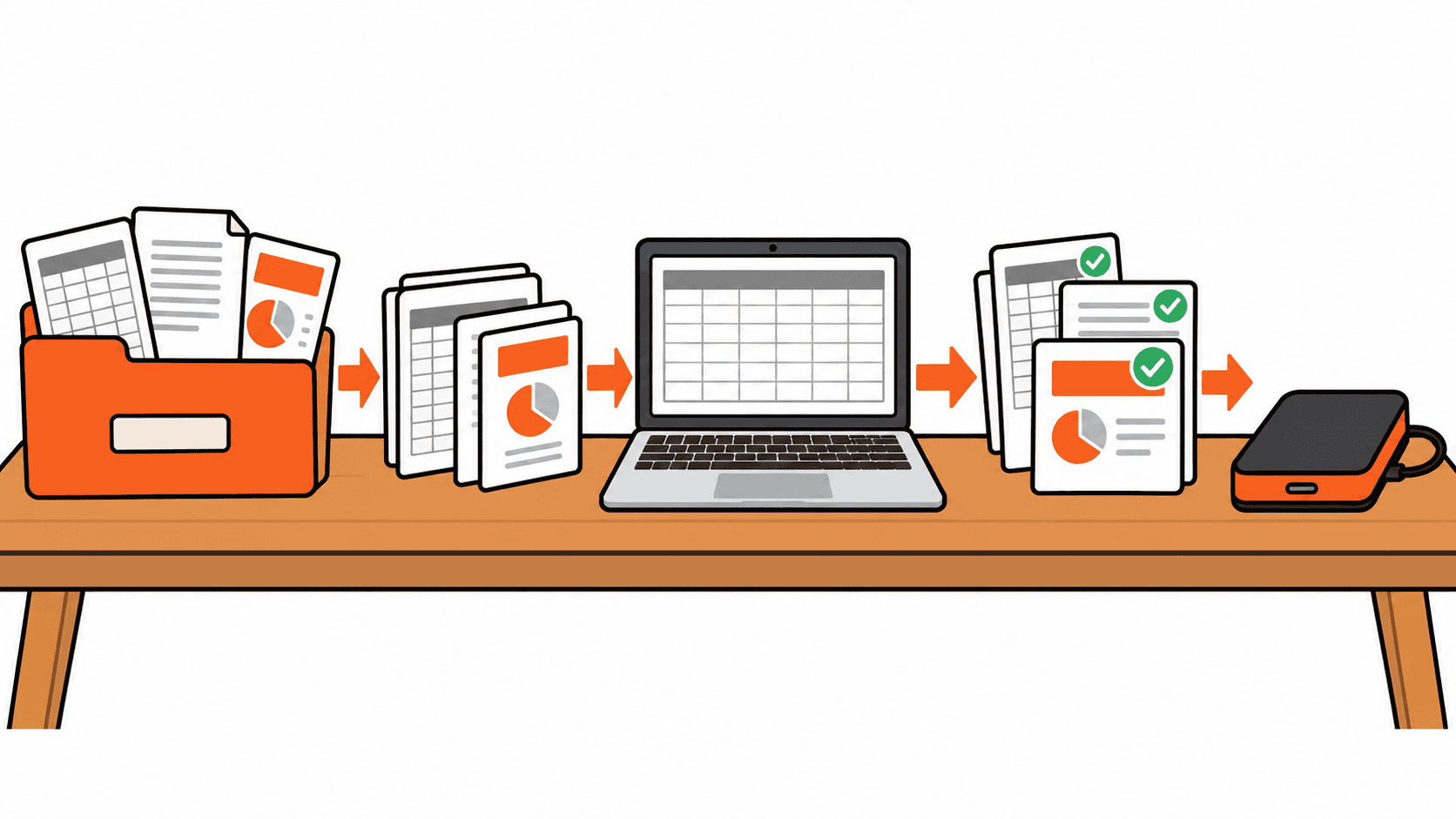
- Open the copy and perform the normal task, including any formulas, macros, or add-ins it relies on.
- Compare the result with a known correct output from the current setup. Inspect totals, dates, layout, and charts.
- Save, close, and reopen the file. Then export or share it the way you normally would.
- Ask the receiving teammate or customer-facing owner to confirm that the output is usable.
Record pass, fail, or needs investigation for each workflow. If a macro does not run or a client template breaks, keep that issue visible. Do not work around it once and pretend the migration is finished.
For spreadsheet checks, our guide to checking spreadsheet formula errors with AI is a useful companion. AI can suggest what to inspect, but your known correct results and workflow owner determine whether the test passes.
5. Back up, assign an owner, and plan the cutover
Back up the original files and confirm that you can open the backup. Keep the Office 2021 end of support inventory alongside copies of templates and add-in details. Follow your organization’s storage rules rather than dropping business files into a new personal account.
Microsoft’s upgrade guidance also calls out backing up Outlook data files where applicable. Include that step before changing an installation that uses them.
Choose a cutover owner, a date, and a short message telling teammates what will change, where their files will be, and where to report a problem. Avoid leaving the first person who opens an invoice on Monday to discover the new process.
If a critical test fails, escalate it to the responsible administrator and document the next step. The app still opening after the deadline is not a replacement plan.
A small-team checklist you can copy
- We identified the devices actually using Office 2021.
- Each critical workflow has an owner and a known correct output.
- We checked the exact replacement edition, licensing, apps, and requirements.
- Representative files passed an open, edit, save, reopen, and share test.
- Backups are usable, and the team knows the cutover date and support contact.
Office 2021 end of support should lead to a tested decision. Give the team a replacement they can use, a checklist they can follow, and original files they can recover. That is a much better outcome than a hurried purchase and an invoice workbook nobody wants to touch.