

Fix spreadsheet formula errors with AI sounds like exactly the kind of shortcut a busy team needs. A broken formula blocks the report, the deadline is still real, and somebody is already asking for the number.
The useful part is that AI can often explain why a formula is failing and suggest a correction. The dangerous part is treating a formula that no longer shows an error as proof that the result is right.
Google documents a Gemini-assisted formula-fix flow in Sheets: when a cell shows an error, you can hover over it and choose Fix for Gemini to review the formula and analyze the issue. It requires an eligible Google Workspace or Google AI plan, and Google notes that Gemini features work best in native Sheets files. See Google’s current Sheets guidance.
Here is the short review routine I would use before I let an AI suggestion change a number that someone else will use to make a decision.
1. Read the error before you ask for a repair
Start with the exact error and the job of the cell. A missing reference, a text-versus-number problem, and an incorrect date range can all produce a red warning, but they need different fixes.
Ask: what should this cell represent in plain English? “Monthly revenue for active customers” is a better starting point than “make this formula work.” If you cannot explain the expected answer, you are not ready to accept an automated correction.
2. Check the referenced cells, not just the formula text
Most spreadsheet mistakes are not glamorous. A row was inserted, a column changed format, a filter hid something important, or a range stopped one row early. Before accepting a suggestion, click through the referenced cells and make sure they still hold the inputs you think they hold.
AI can spot a syntax issue. It cannot know that your “January” column was accidentally copied from December unless you give it that context and then verify it.
3. Give AI the business rule, not only the broken formula
When you fix spreadsheet formula errors with AI, describe the logic you need: “Sum paid invoices dated this month, excluding refunds,” or “Show the percentage of completed tasks out of assigned tasks, but leave the cell blank when nothing is assigned.”
That prompt makes the suggestion easier to inspect. It also exposes assumptions. If the suggested formula includes refunds when it should not, you can catch the mismatch before it reaches a dashboard.
4. Test the repair with two obvious examples
Do not begin with the whole report. Test one row where you know the answer and one edge case. For a percentage, try a normal value and a zero denominator. For a date calculation, try the first and last day of the month. For a lookup, test both a known match and a missing record.
If the formula passes those examples, you have evidence. If it only removes the error message, you have a prettier spreadsheet and no evidence at all.
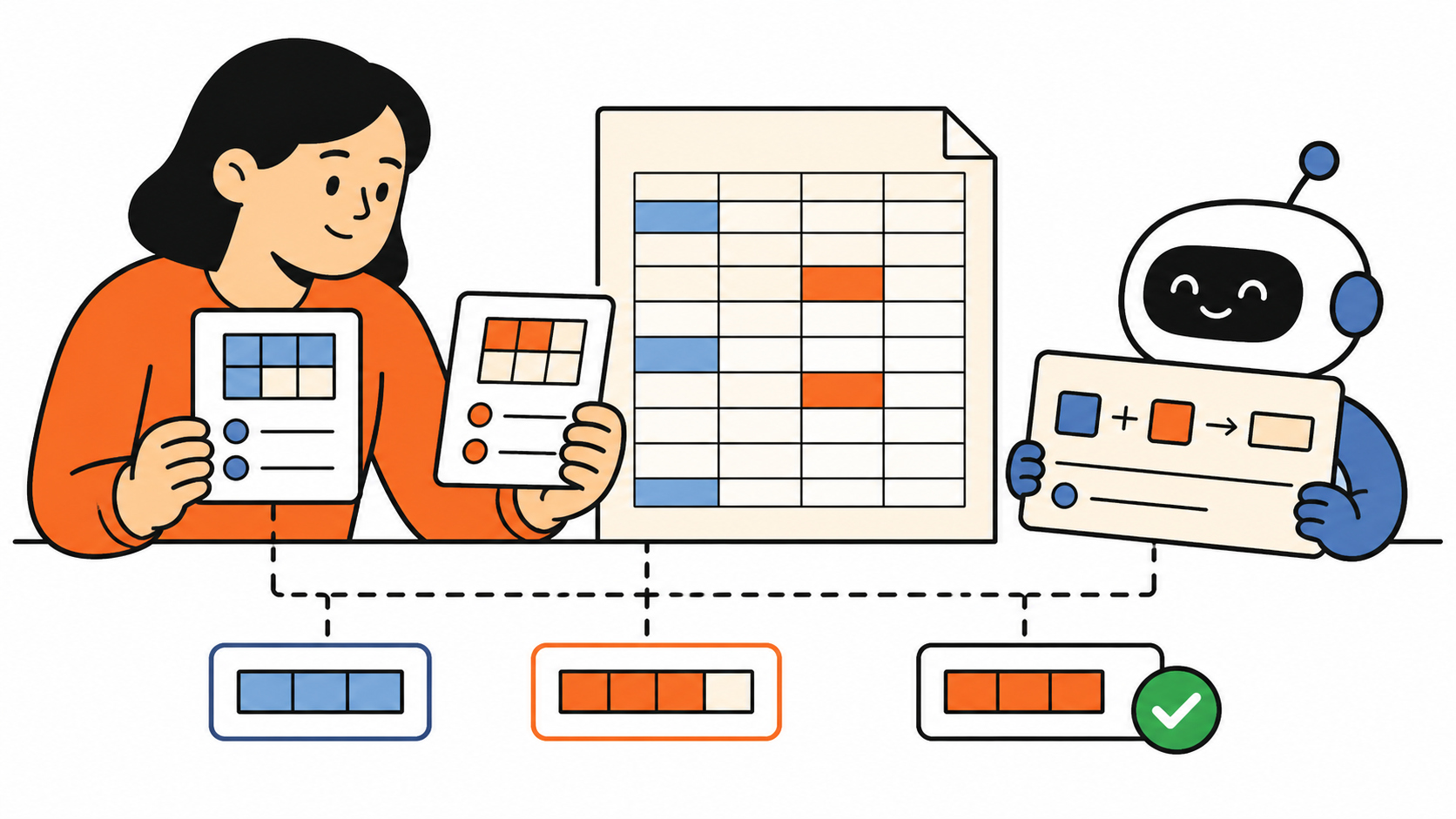
5. Protect the original before you overwrite it
Copy the original formula into a note, duplicate the sheet, or make the correction in a helper column first. The goal is not bureaucracy. It is giving yourself a quick path back when a “fix” changes the numbers in a way you did not expect.
This is the spreadsheet version of checking AI output before it travels. A clean-looking answer can still carry a quiet mistake, which is why the same review habit matters in an AI workslop check.
6. Add a tiny audit note for material numbers
If a corrected formula feeds a weekly report, forecast, invoice, or management decision, leave a short note with the date, the formula change, and who checked it. One sentence is enough: “Corrected the revenue range after the July rows were inserted; spot-checked against invoice totals.”
That note saves a surprising amount of time when someone asks later why a total moved.
When to fix spreadsheet formula errors with AI
Fix spreadsheet formula errors with AI when it can speed up diagnosis, explain a formula, or generate a first repair to review. Keep a human responsible for the business rule, the source cells, and the final number.
That is especially important when the spreadsheet becomes a status update. If the numbers are feeding a recurring message, pair this routine with a clear AI weekly status report review so a formula correction does not quietly become a reporting error.
Fix spreadsheet formula errors with AI for the mechanics. Trust the answer only after the logic and a couple of test cases agree.