How to catch up on emails after vacation without losing your first morning back: it’s 9:07 on Monday, you have 86 unread emails, three messages marked “quick question,” and exactly zero confidence that you know what matters.
The trap is starting at the top of the inbox and reading everything in order. That feels responsible, but it turns a catch-up into a two-hour scavenger hunt. You’ll know every detail of a vendor thread from Thursday and still miss the one decision your teammate needs today.
If you’re wondering how to catch up on emails after vacation, here’s the 15-minute inbox catch-up routine I use after a long weekend, vacation, or simply a day when email got away from me. The goal is not Inbox Zero. It’s to know what needs your attention, close the obvious loops, and get back to actual work.
How to catch up on emails after vacation: don’t start at the top
Give yourself one rule: you are not “catching up” by reading every message. You are looking for decisions, deadlines, and people waiting on you.
Before opening individual emails, take 60 seconds to check your calendar. What meetings, deliverables, payments, approvals, or customer conversations happen in the next two working days? That is your filter. Your inbox is full of information; your calendar tells you what information can hurt you soon.
Minutes 1–3: find the people, not the pile
Start with people who can reasonably be blocked by your answer: your manager, clients, customers, direct reports, active vendors, or anyone tied to a live project. If you use Gmail, search a short list of names or open your priority label—whatever is already reliable for you.
Then run a date-bounded search instead of scrolling. For example:
after:2026/07/13 -category:promotionsWhen you’re working out how to catch up on emails after vacation, change the date to the last day you were working. The point is to remove old noise and promotions before you spend attention on it.
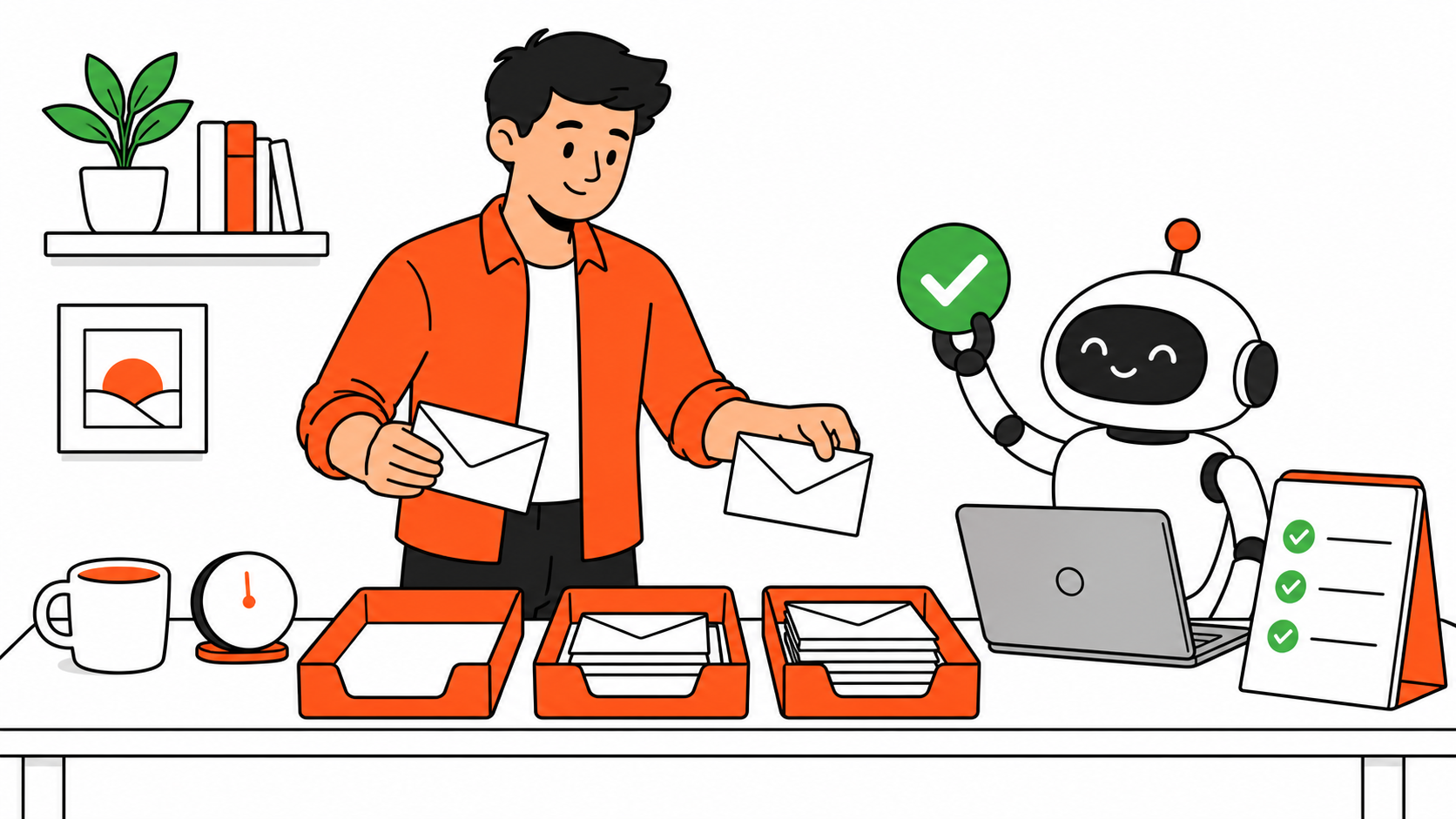
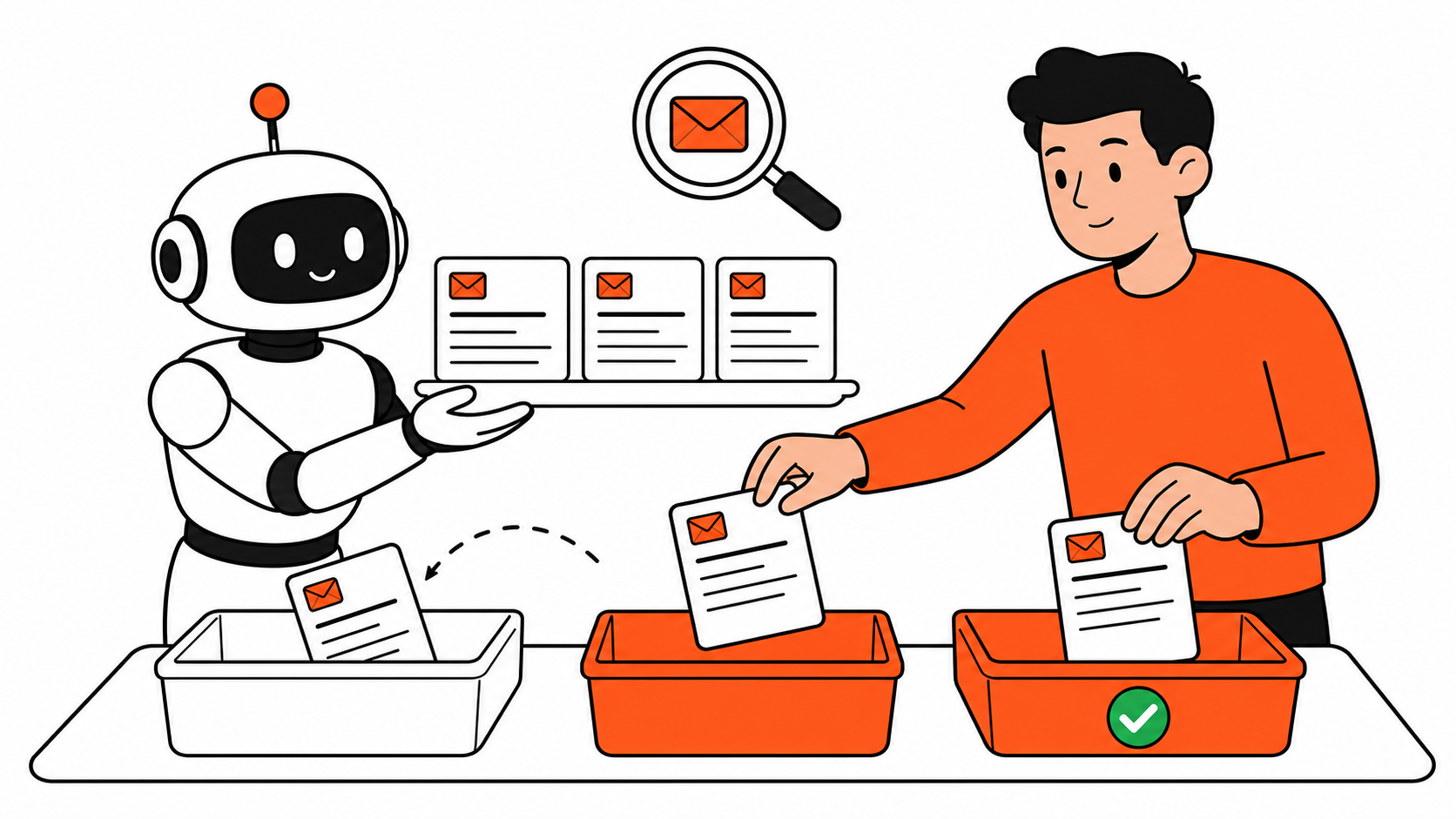
As you scan, put every message into one of three buckets:
- Act today: a decision, deadline, customer issue, or a reply that is actively blocking someone.
- Reply later: important, but not a same-day fire.
- Archive: FYI, completed, promotional, or something you can find again when you actually need it.
Do not build an elaborate folder system in the middle of a stressful Monday. Star messages, snooze them, use labels—pick the lightest version your inbox already supports.
Minutes 4–8: read the decision points
Open the “act today” emails only. For each one, ask:
- What is being asked of me?
- What is the deadline?
- Can I answer, delegate, or schedule the next step in under two minutes?
If yes, do it. If not, turn it into a task with a real next action: “Review revised proposal before 2 p.m.” is useful; “deal with proposal” is how a message ends up haunting you on Friday.
A useful low-pressure reply is often enough to unblock the other person:
I’m back and reviewing this now. I’ll send you a clear answer by [time/day].
That is better than disappearing while you try to write the perfect response. It gives the other person certainty and buys you space to think.
Minutes 9–12: use AI for the summary—not the decision
AI can be helpful when a thread is long or several emails contain pieces of the same update. It is not a reason to hand your inbox over to a bot and hope for the best.
For eligible Gmail and Google Workspace accounts, Gmail can generate an AI Overview from a natural-language search, such as:
What decisions do I need to make this week?
That can help you spot the threads worth opening. Google’s current Gmail guidance notes that AI search features vary by plan, region, language, and account type, so treat an overview as a shortcut—not your operating system.
Whatever tool you use, verify the original email before you reply, approve, or promise something. A summary can surface the thread; the actual message still owns the facts.
And don’t paste customer information, private HR details, contracts, or your whole work inbox into a personal AI account. Use tools your company has approved for that data, or use the manual routine above. The best workflow is the one you can trust.
If you want a few reusable prompts for turning messy work into a next-action list, these AI prompts for operations work are a good starting point. Just keep the final judgment with the person responsible for the outcome.
Minutes 13–15: make tomorrow’s inbox smaller
Before you leave email, do three small things:
- Reply to one person who is waiting on you.
- Schedule or delegate one task that cannot be solved in an email reply.
- Archive everything you have consciously decided is not for today.
Then close the inbox. Really. You are allowed to return to it later, but do not make inbox reading the work you do instead of the work you need to do.
The part most people skip
The real answer to how to catch up on emails after vacation is not an empty inbox. It is an legible one. When you can point to the few conversations that need action and know when you will handle the rest, you are caught up enough to work.
That is the win: not 86 emails read, but a Monday morning that didn’t disappear into them.
What’s your first move after time away: reply, archive, or make coffee and pretend the inbox isn’t there? I won’t judge.
Feature availability note: Gmail AI features vary by account type, plan, language, and region. Check your Gmail settings or Workspace plan before relying on them.